Running PROVIEW under
Windows 7 or 8
Proview
will only run directly on the 32bit version.
To find out if your computer is running a
32-bit or 64-bit version of Windows 7, do the following:
1.
Click
the Start button, then right-click on Computer , and then click Properties.
2.
Under
System type, you can discover if you
have the 32 bit or 64 bit version.
If you have 32 bit then Proview can be installed directly,
If 64
bit then Proview will only run under the XP Mode.
Or
within a Virtual PC running as Win XP
The Virtual XP Mode will need to be downloaded and installed.
Alternatively
run Proview on an older computer.
If Window 7.0 32 bit version then continue as below.
Click Start
in
the "search" box - Type MSCONFIG
Click on the ‘Tools’ and then ‘Change UAC
Settings’ then click ‘Launch’
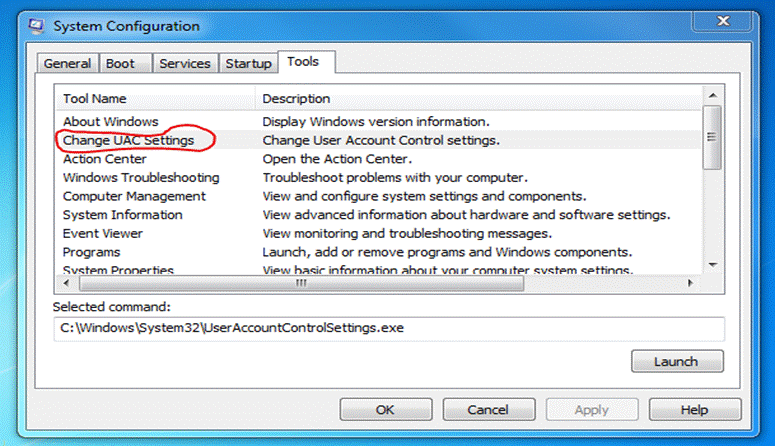
Drag the slider bar down to the lowest level ,
then click ‘OK’
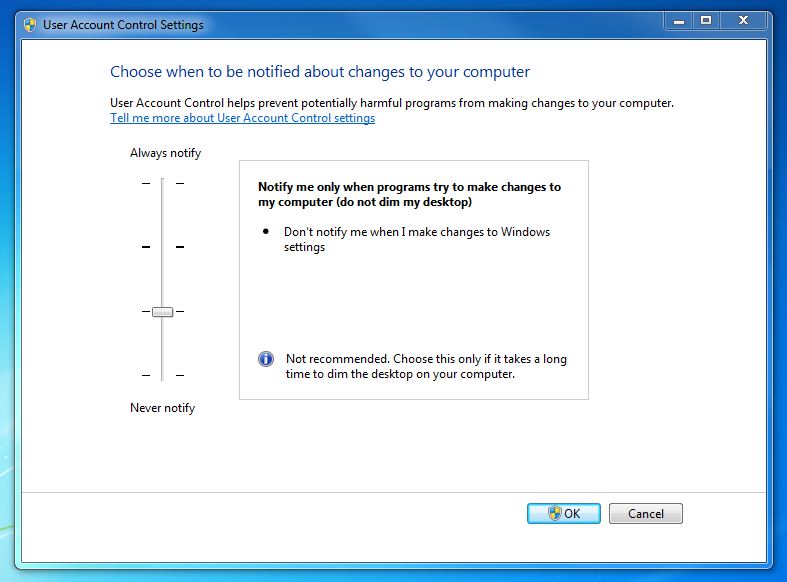
You may need
to reboot the machine.
Windows 8.0
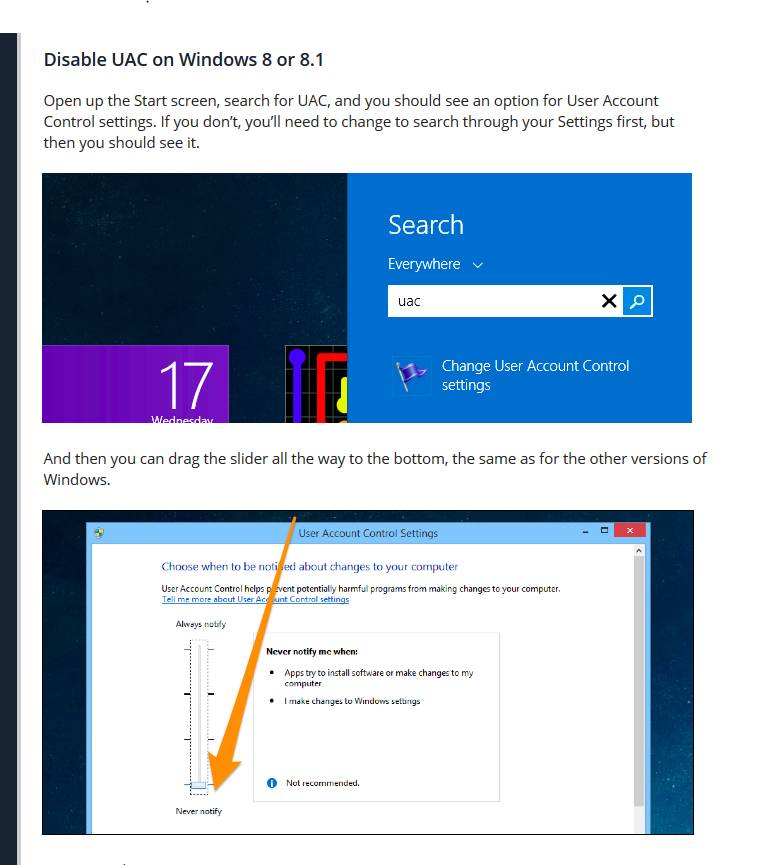
NOW YOU ARE READY TO INSTALL PROVIEW.
Installation
Right click on PRONAV.EXE, click on ‘Run as Administrator’.
(PRONAV.EXE is the file you downloaded from us or on the disc that we sent to you)
Click on ‘-> Allow this program, I know ..... ‘
Proview Navigator box should appear, click on ‘Setup’. This will uncompress the setup programs.

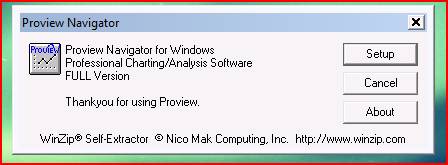
Proview Navigator for Windows setup will now start. Click on ‘OK’

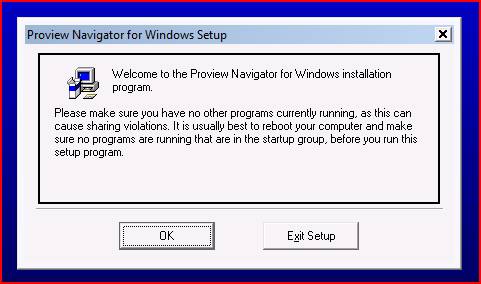
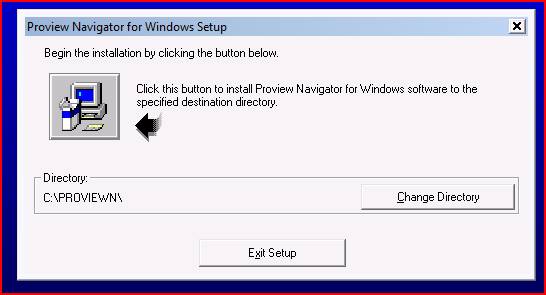
Installation will start when you click on the button below

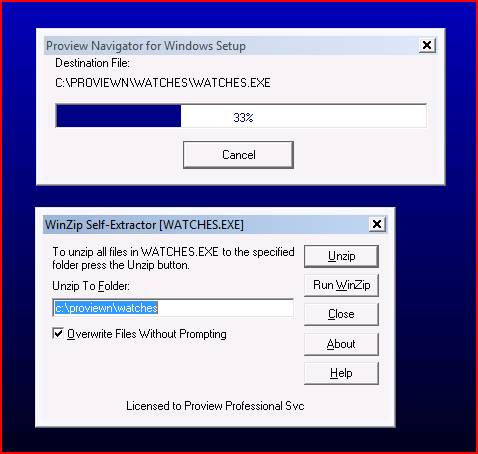
Proview Navigator will now unzip WATCH files. Click on ‘Unzip’, ‘Ok’ then ‘Close’ as shown below


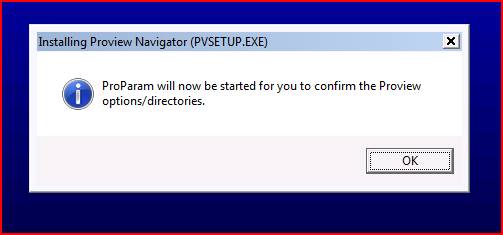
ProParam will start , confirm your options and click on ‘OK’ button

Click on ‘Save current’ button when you are happy with the options

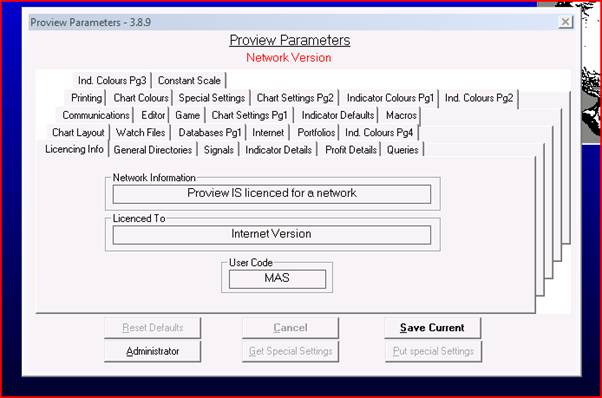
Proview will now finalize the installation and create an icon on your desktop.
Windows Home Premium 7
If unable to install, then restart Windows in Safe Mode.
Double click on PRONAV.Exe and follow steps above.
Error 70 Permission Denied
Proview uses this function extensively.
To get around this
one, do as follows.